Import 5etools-format data
Borealis converts 5etools-format JSON data into content packs on your device. The import follows fixed rules and uses no AI. Packs made this way are marked "Local import — not redistributable" and stay on your device.
Borealis comes with the SRD rules only. It does not include any 5etools-format data and does not suggest where to find it. Import data you already have and are entitled to use, such as your own homebrew.
What 5etools-format data looks like
The data is a folder, usually called data, of JSON files: a books.json at the top, files such as races.json, feats.json and backgrounds.json, and the class, spells and bestiary folders with their index.json files. Class spell lists come from generated/gendata-spell-source-lookup.json, so keep the generated folder if you have one. Homebrew written in this format works the same way.
From a data folder on your computer
-
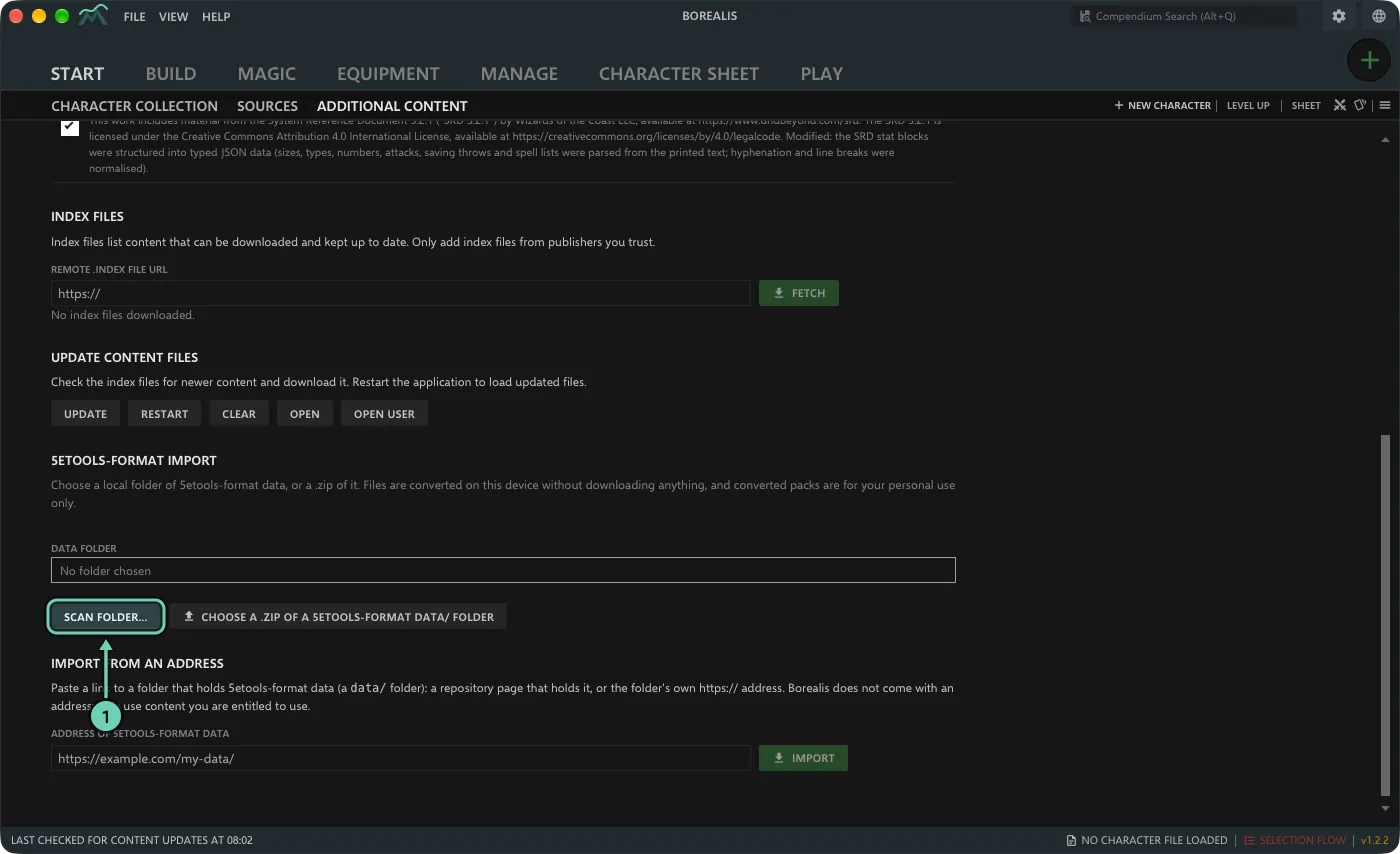
Open Start > Additional Content, scroll to the 5etools-format import section and click Scan folder...
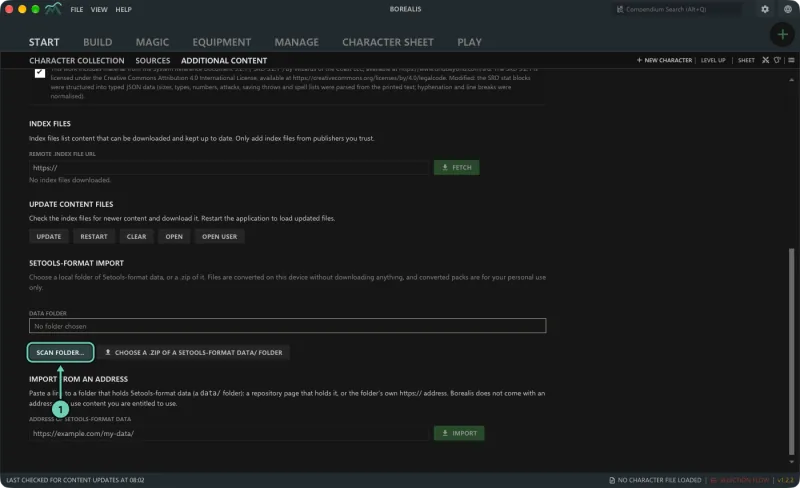
- Confirm the import notice, then choose the
datafolder itself: the one that holdsbooks.jsonand theclassandspellsfolders, not the folder above it. -
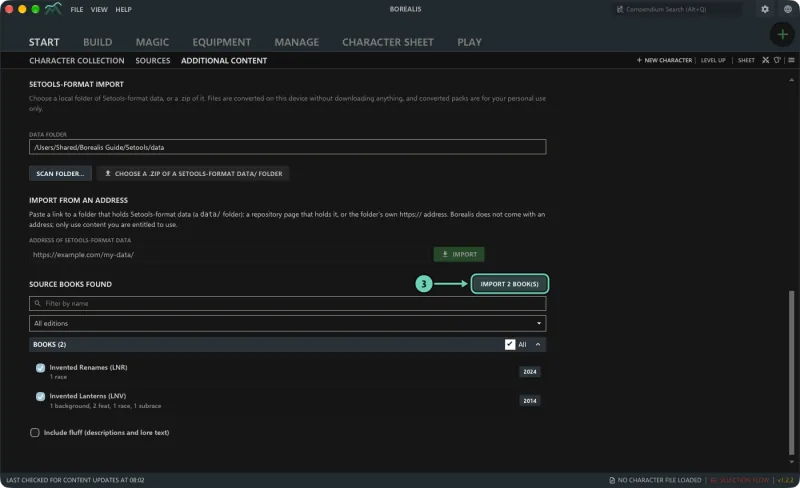
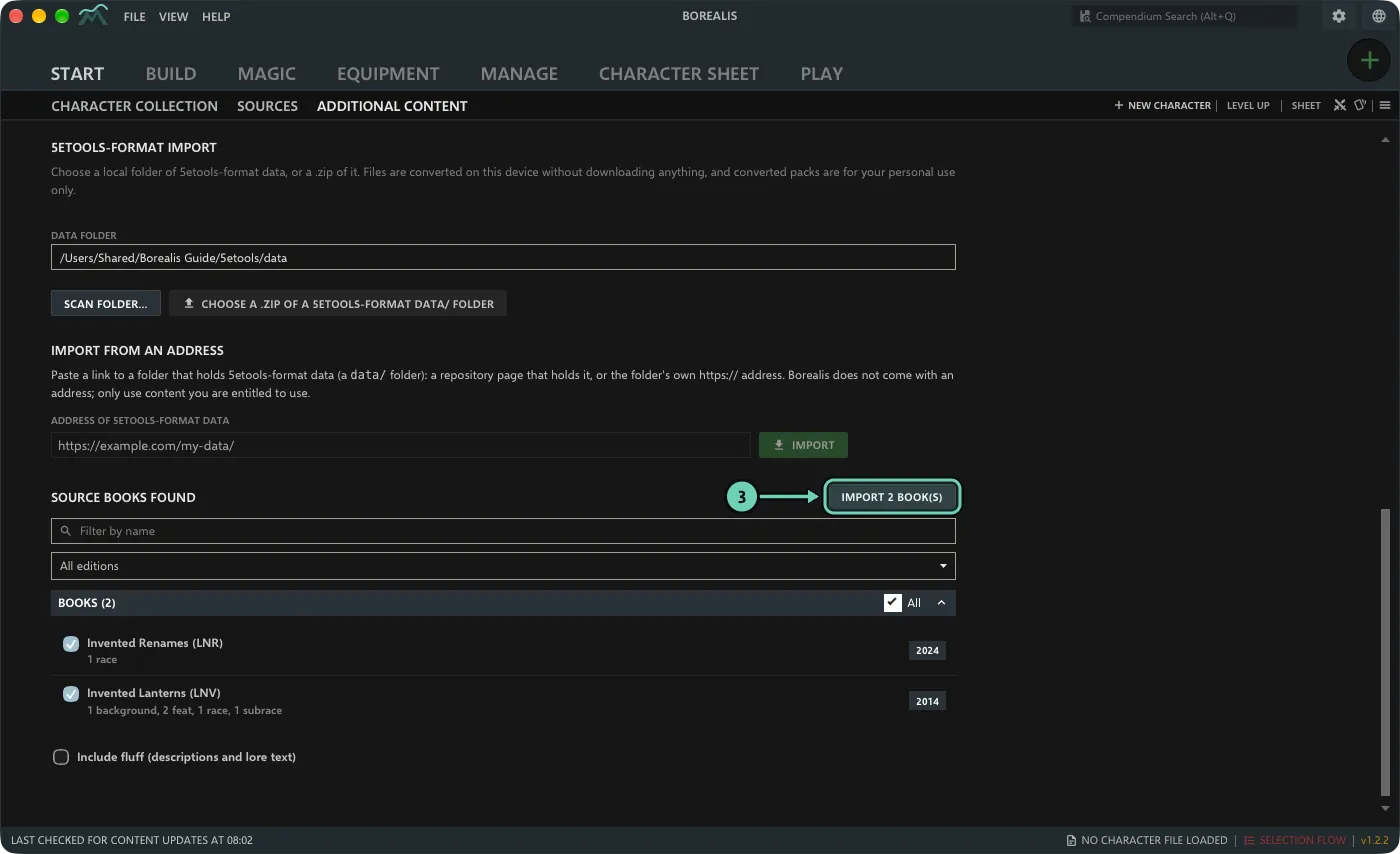
Under Source books found, untick anything you don't want. Filter by name and the edition list (All editions, 2014 rules, 2024 rules) help with long lists. Tick Include fluff (descriptions and lore text) if you want those texts too. Then click Import N book(s).
-
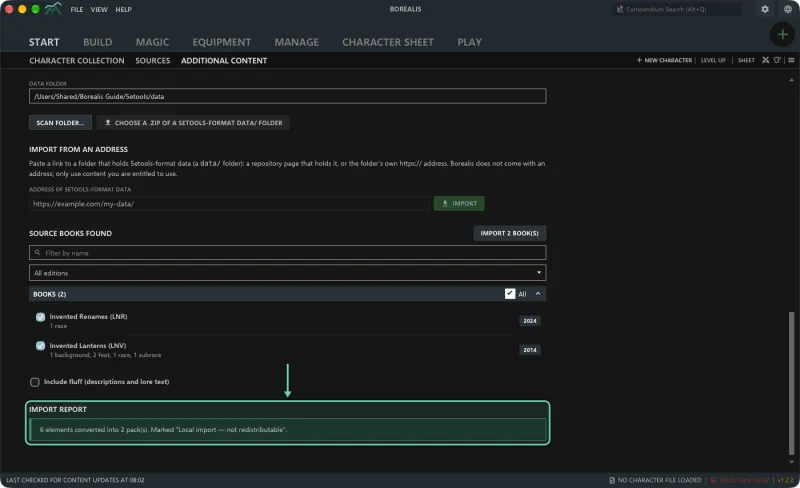
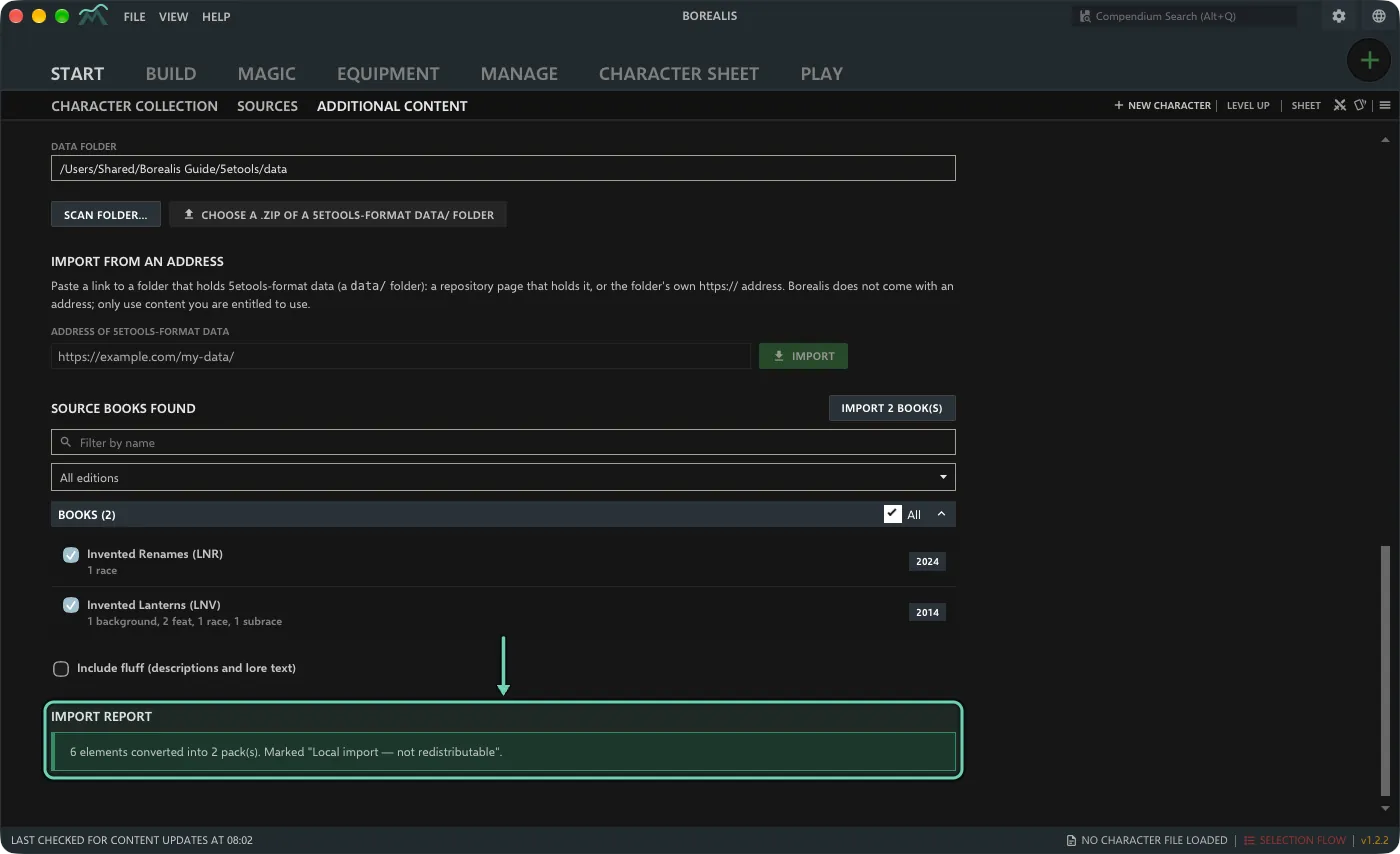
Read the Import report: how many elements were converted into how many packs, and what was only partly converted or skipped, with the reason.
From a .zip, on a phone or a computer
Phones cannot scan a folder, so zip the data folder and put the .zip on the phone (for example with the Files app, a USB cable or a cloud folder you already use). Then, on Additional Content (on a phone: More > Content), tap the .zip button next to Scan folder... (on a phone it is the only button there) and continue from step 3 above.
The .zip can be the data folder itself or contain it. It can be up to 64 MB and hold up to 2,000 data files.
From a link to the folder
If the data is online, Borealis can download it for you, on phones too. It accepts these kinds of link, always starting with https://:
- the page of a GitHub repository that holds a
datafolder, as your browser shows it, or the page of a branch or folder in it (a…/tree/…link); - any web address of the
datafolder itself, such ashttps://example.com/my-homebrew/data/, or of a file in it, such as…/data/books.json. The folder must have itsbooks.json.
Links to a .zip, and share links from cloud drives, do not work here yet: download the .zip and use the .zip button instead.
- Under Import from an address, paste the link into the address field and click Import.
- Borealis names the site it will download from. Click Download, then choose books as in step 3 above.
- Later, Update next to the address imports again only if the data changed. Remove forgets the address; the packs stay.
Only use links you trust, to data you are entitled to use.
After the import
- Each source book becomes its own pack under Installed packs, where you can untick it to hide it or click Remove.
- Importing the same book again replaces its pack in place.
- Basic entries that the bundled rules already define (languages, skills, item types and similar) are not imported twice; the report counts them.
- Some details of the format have no rule in Borealis and are kept as text: for example images and embedded stat blocks are dropped, and only the first of several alternative ability score options is used. The report lists every case.
If a book does not import as expected, post in the Borealis Discord (#imports) or open an issue with the book, the element, what you expected and your Borealis version. Please don't attach files of paid books.