Create and level up a character
From an empty collection to a levelled-up hero. The screenshots show Borealis on a Mac; Windows and Linux look the same. On a phone the same steps sit behind the tab bar at the bottom.
Create the character
-
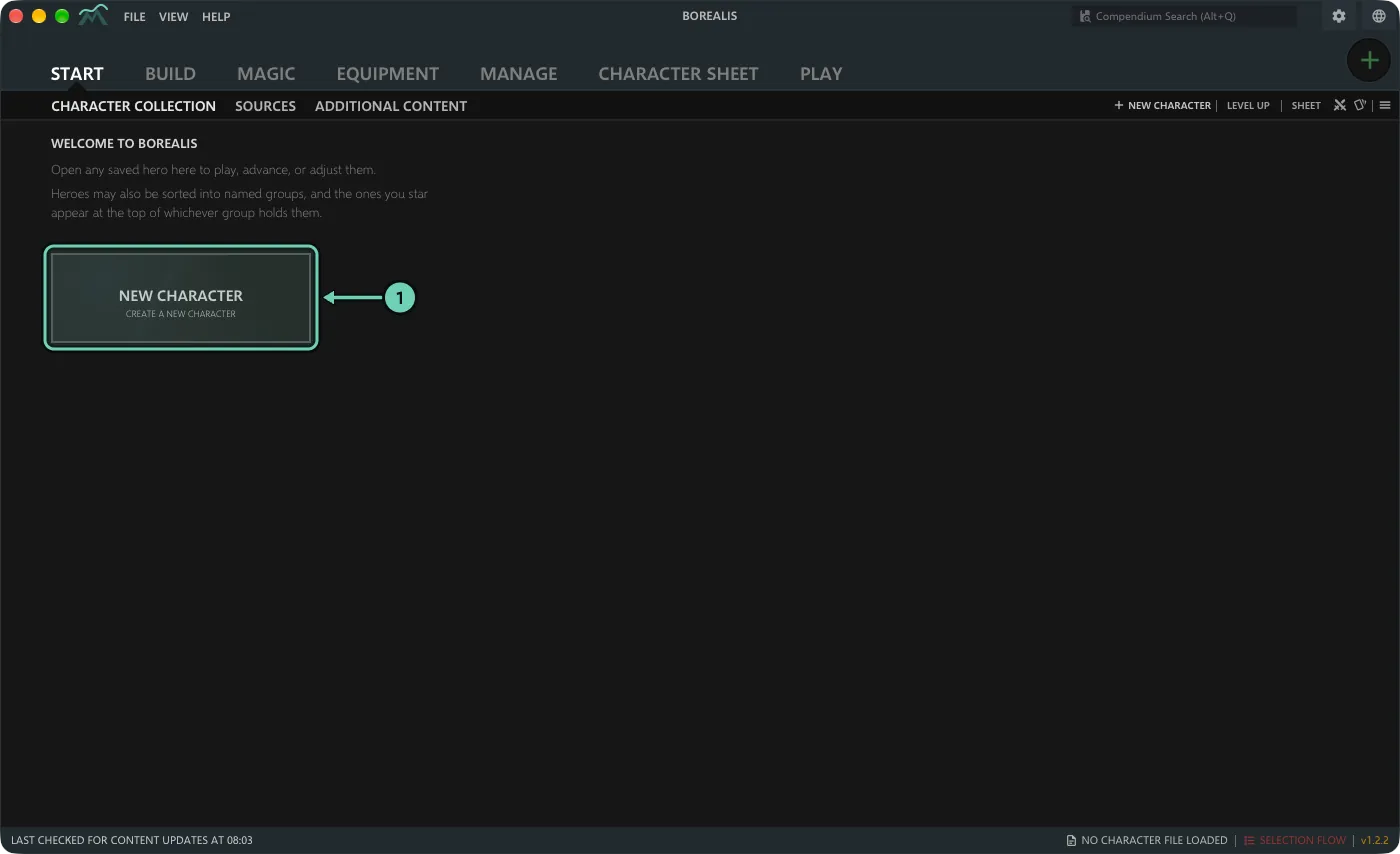
On Start > Character Collection, click New character. You can also use File > New Character.
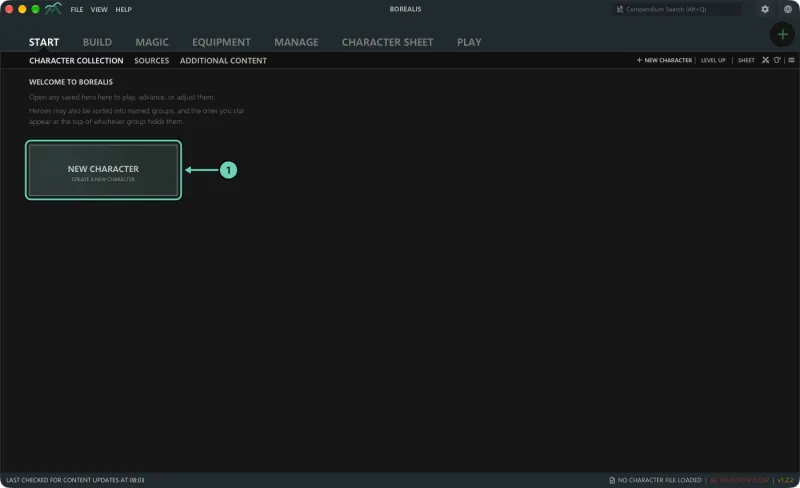
-
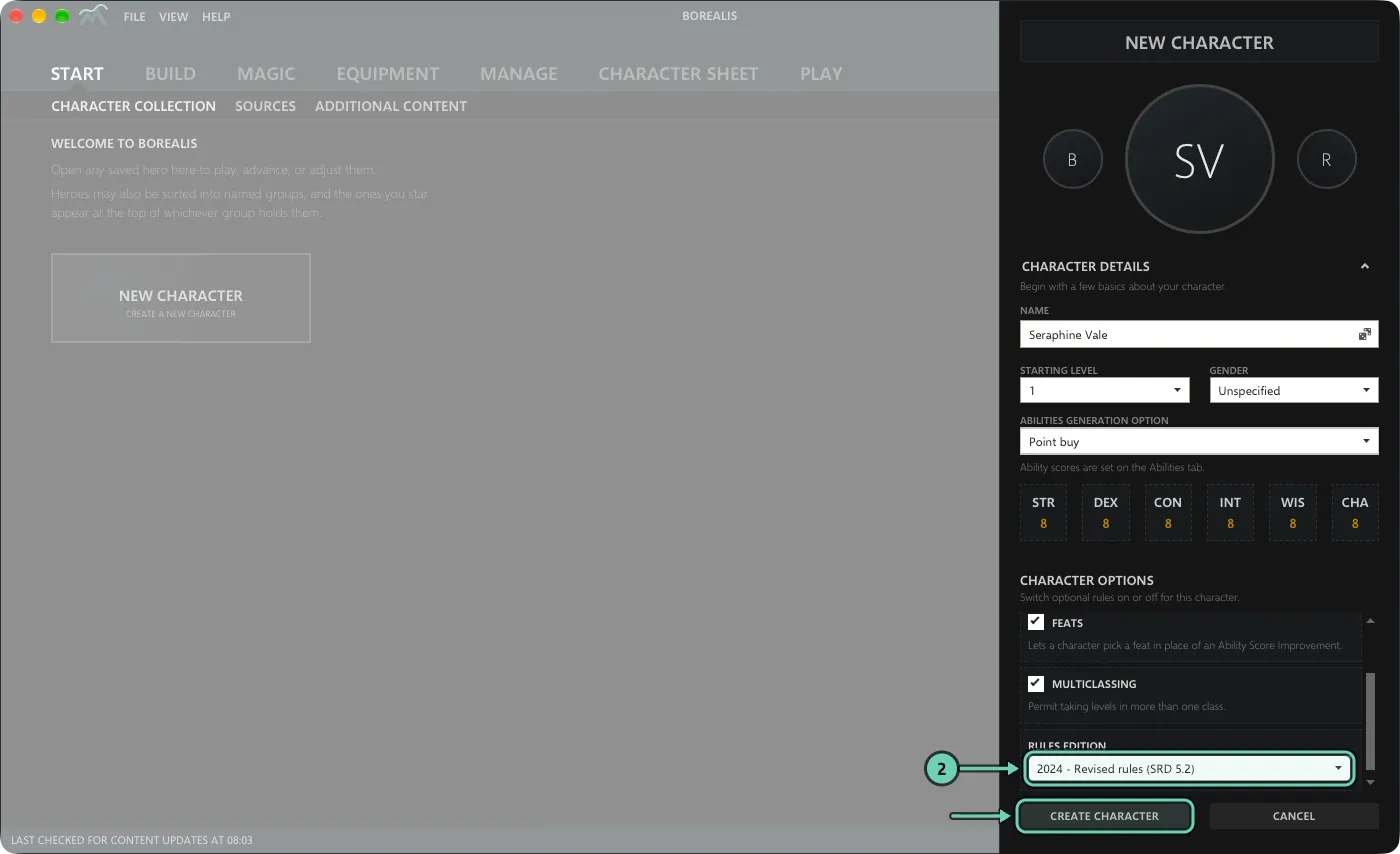
Give the character a name (the dice button picks a random one), a Starting level and an Abilities generation option: Point buy, Standard Array, Roll 4d6, drop lowest, Roll 3d6 or Manual. Under Character options, choose the Rules edition: 2024 - Revised rules (SRD 5.2) or 2014 - Classic rules (SRD 5.1). Then click Create character.
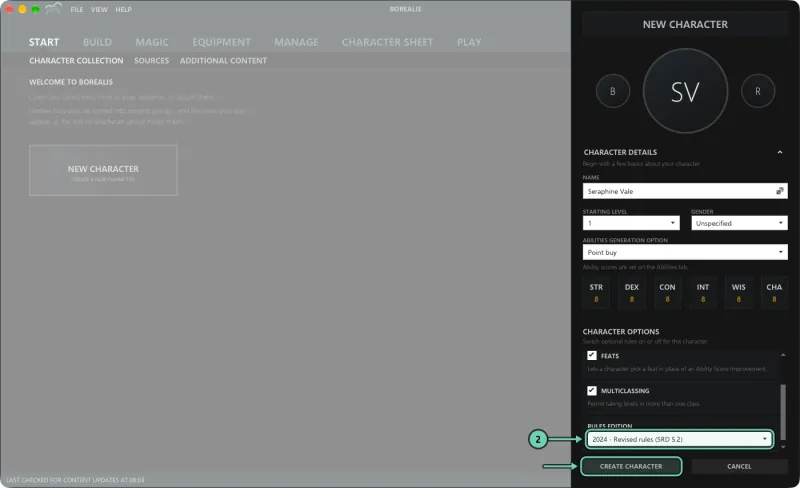
The edition stays with the character all the way to level 20. The default for new characters is in View > Borealis Settings > Content.
-
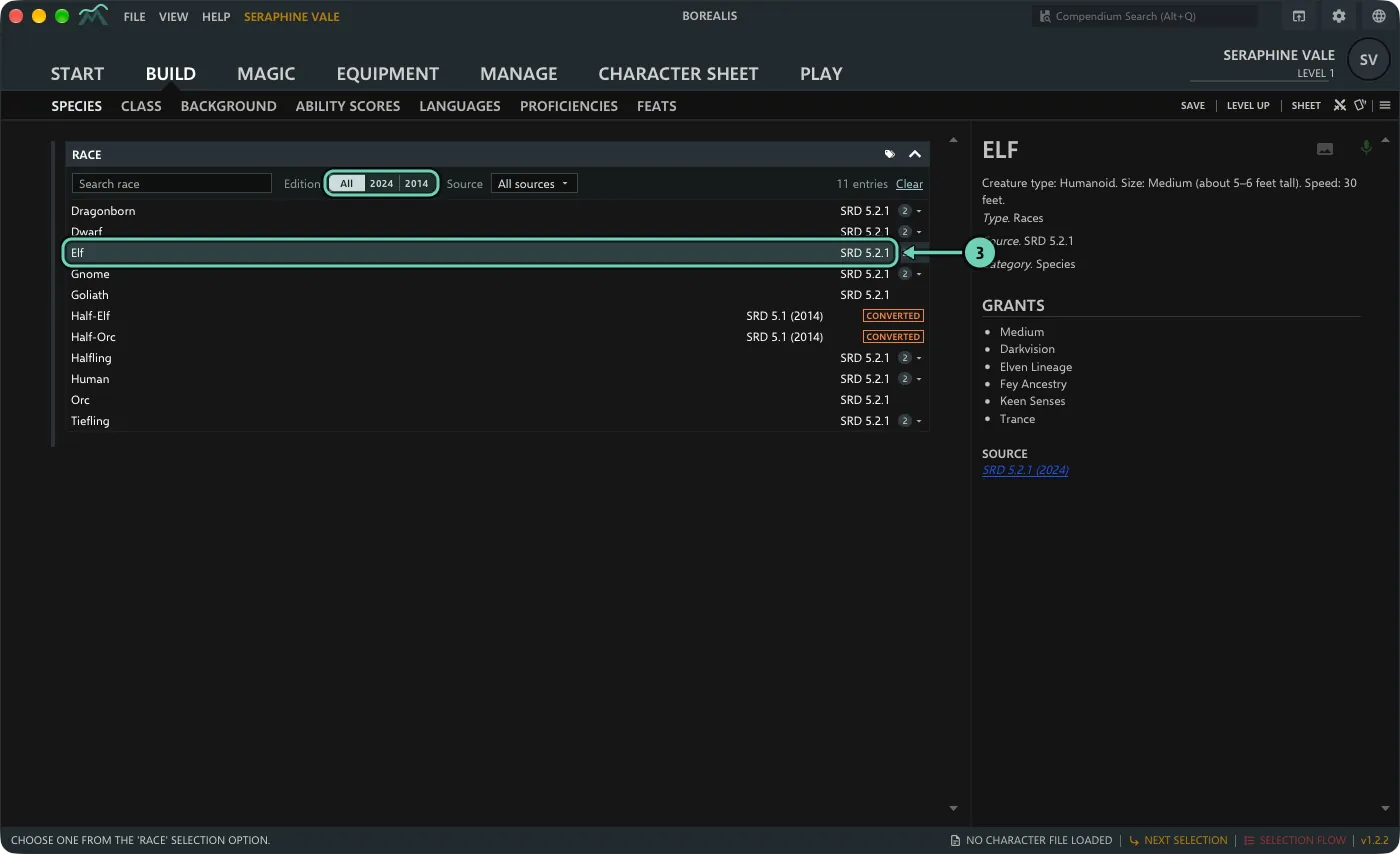
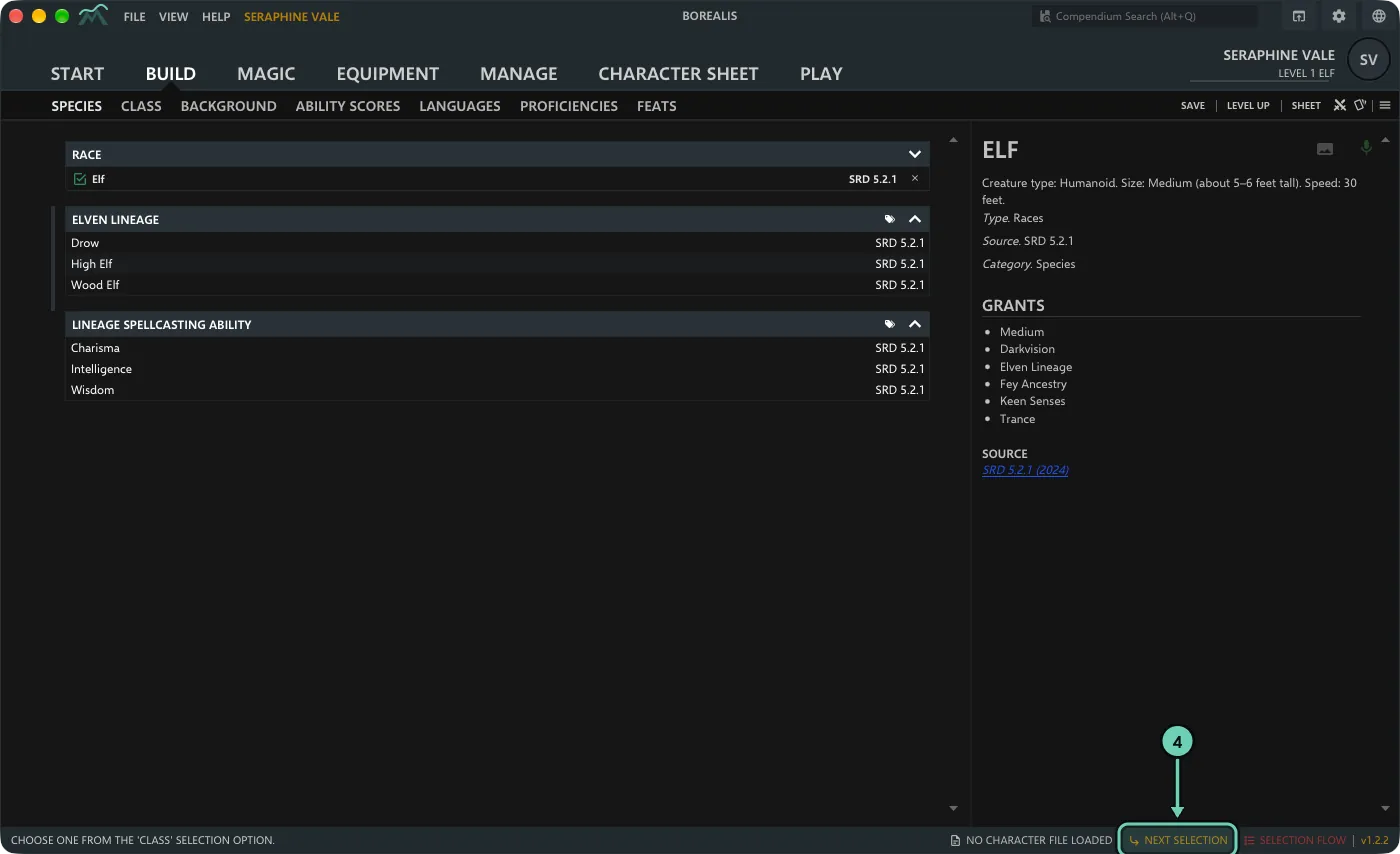
The Build tab opens on Species (2024) or Race (2014). Double-click an entry to choose it, or select it and press Enter. On a phone, tap it and then Choose. The right-hand pane shows the full text of whatever is selected.
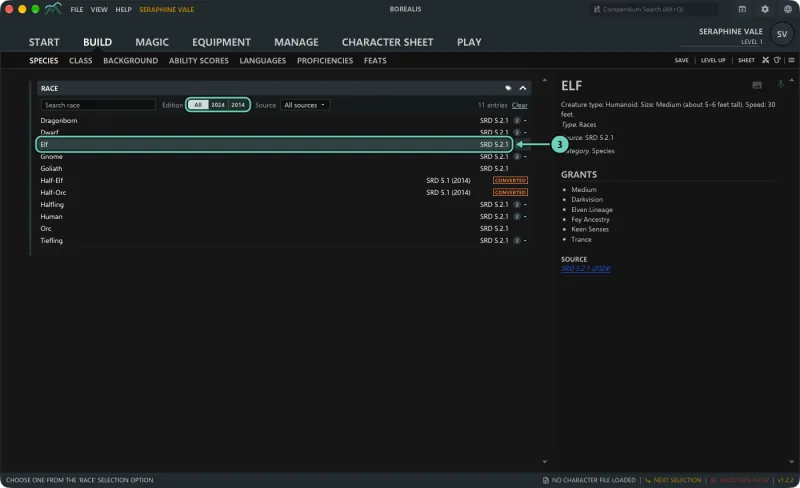
-
Work through the other tabs: Class, Background, Ability Scores, Languages, Proficiencies and Feats. Choices that appear because of an earlier pick (here, the elven lineage) show up on the same tab. Next selection in the status bar jumps to the next choice still open.
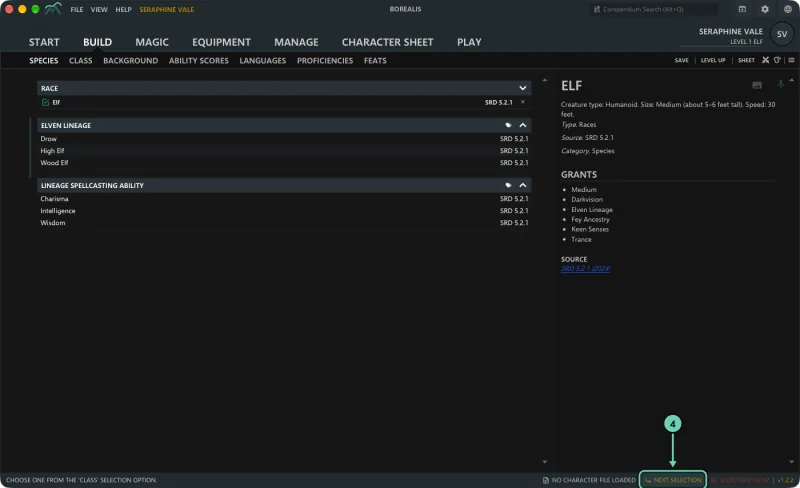
-
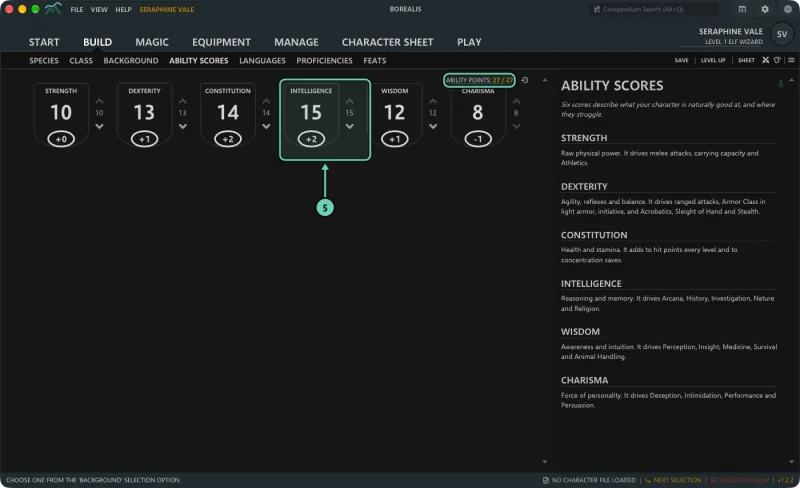
On Ability Scores, set the six scores with the arrows. With point buy, the counter at the top shows how many of the 27 points you have spent; the roll methods have a dice button to roll every score.
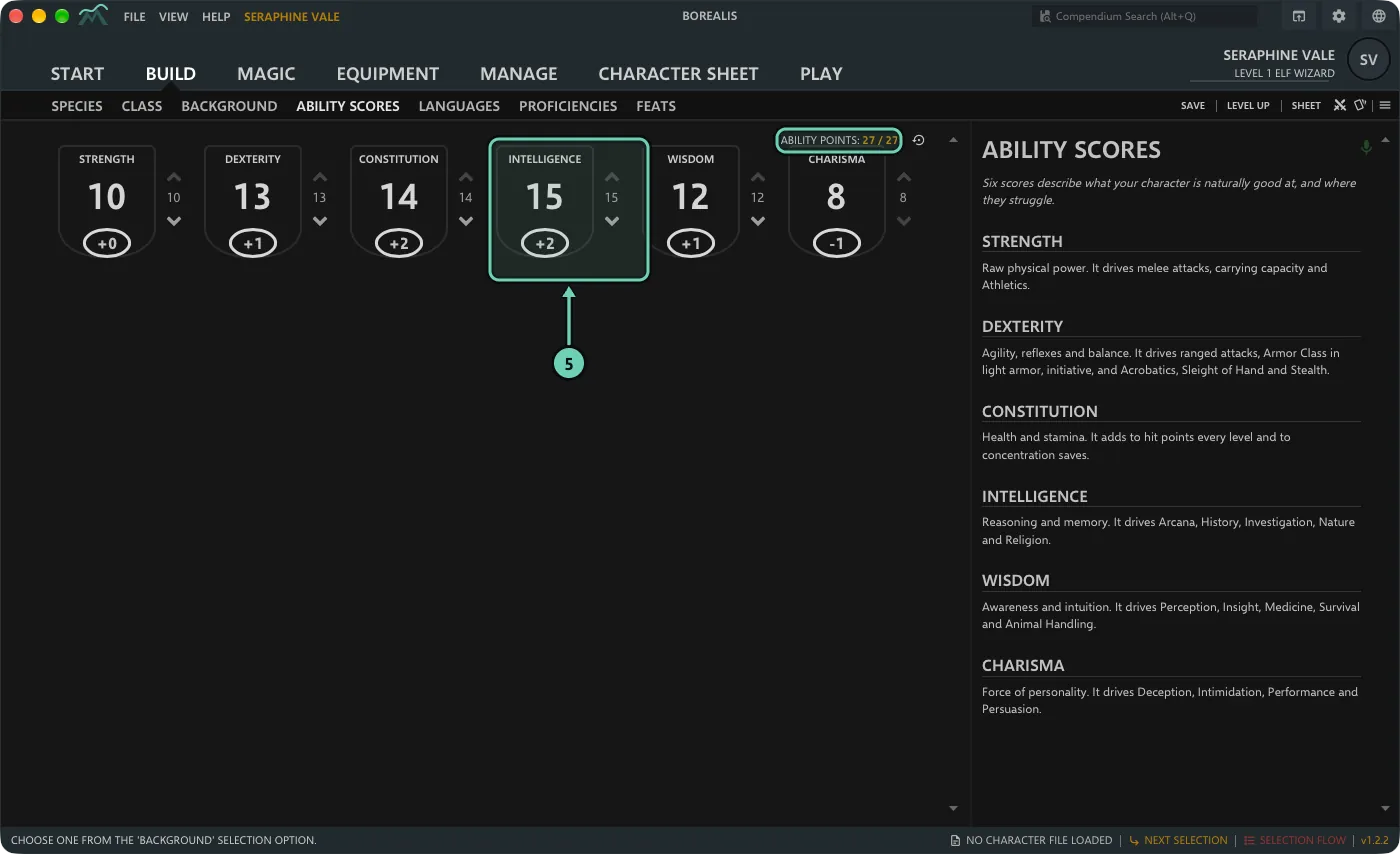
Spells are on the Magic tab, gear on Equipment, and name, experience and notes on Manage.
Lists, filters and versions
Long lists have a filter bar on top: a search box, Edition (All, 2024 or 2014), Source, the number of entries shown, and Clear. Filters only change what you see; they never remove a choice you made.
Each name is listed once. When an entry exists in more than one source or edition, a number after its source shows how many versions there are. Click it to choose which one to use; the version written for your character's edition comes first. An entry from the other edition has the year after its source, for example "(2014)".
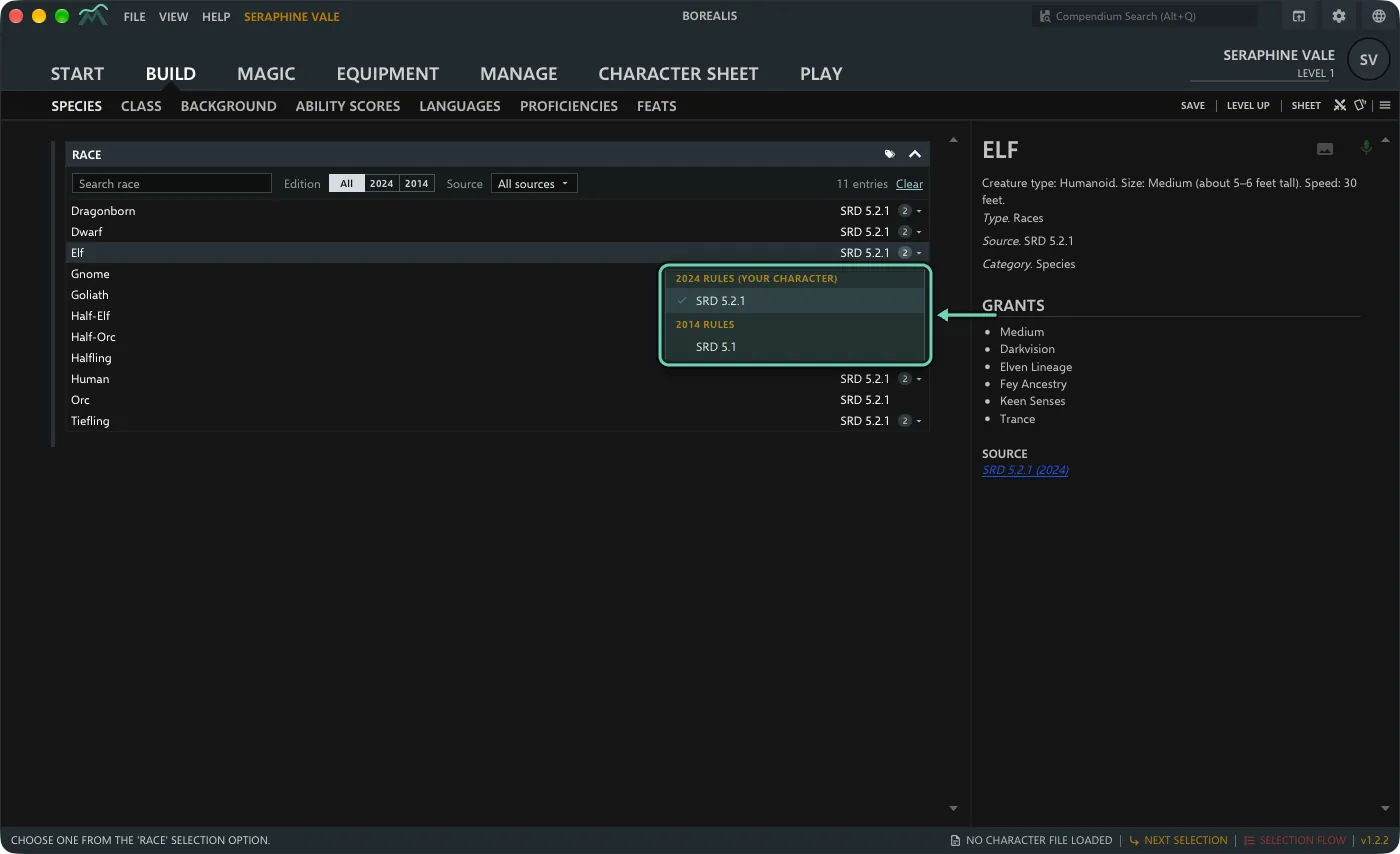
To keep new picks to your character's edition only, open the character's menu (its name in the menu bar), choose Edition & compatibility… and turn on Strict mode. Picks you already made stay.
Level up and multiclass
-
Click Level Up at the top right (also in the character's menu as Level Up, HP & Multiclassing). In the panel, click Level up on the class card. Then make the new choices on the Build and Magic tabs; Next selection finds them.
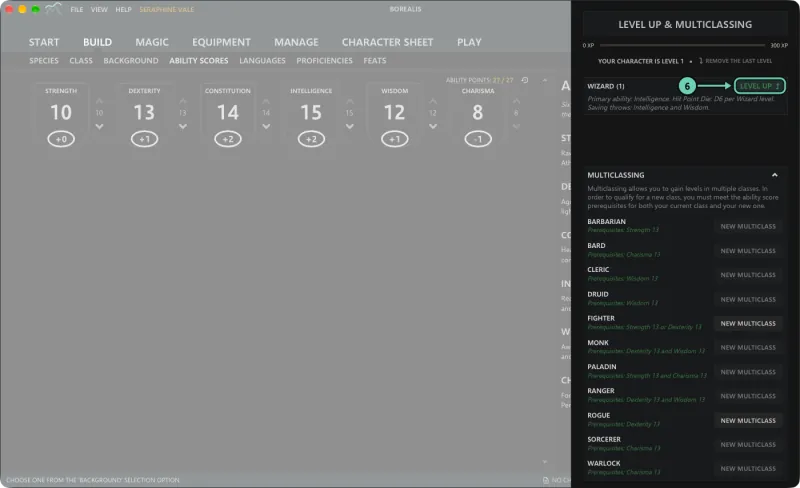
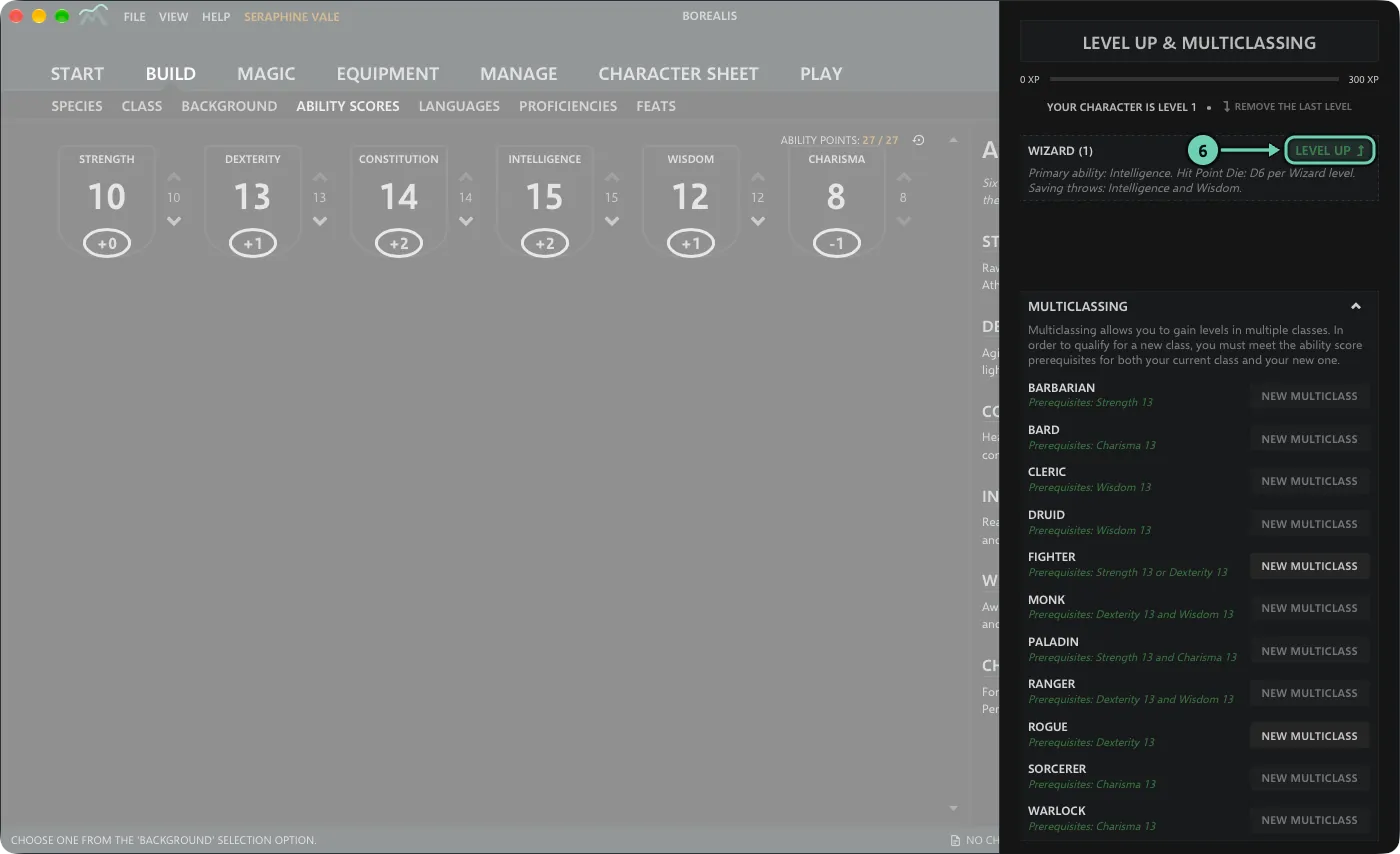
- Hit points: with Average hit points on (the default), they are worked out for you. If you untick it when you create the character, the panel asks for your roll at each level. Level 1 always uses the largest value of the hit die.
- Multiclassing: open Multiclassing in the same panel and click New multiclass on a class; its prerequisites are listed. Then pick that class on Build > Class.
- Experience: enter XP on Manage > Character. Borealis shows when a level is available but never adds one by itself.
- Remove the last level in the panel undoes a level.
Saving
Autosave is on by default: Borealis saves a moment after each change. You can turn it off in View > Borealis Settings > General and use File > Save instead. Characters are saved as files on your device; to copy one to another device, see Move characters between devices.