Import Aurora content files and characters
Borealis reads Aurora XML content files, .index files and .dnd5e characters on your device. The import follows fixed rules and uses no AI: the same file always gives the same result, and you see what will be added before anything is installed.
Import only content you own or are licensed to use, such as your own homebrew. Borealis comes with the SRD 5.1 and SRD 5.2.1 rules and nothing else, and does not suggest where to find other content.
Import XML files or your content folder
- Open the Start tab and choose Additional Content. On a phone, tap More, then Content.
-
Click Import files and choose one or more
.xmlor.indexfiles, or a.zipof them. On a computer you can also click Import my content folder to bring in your whole custom content folder at once, or drag the files onto the Borealis window.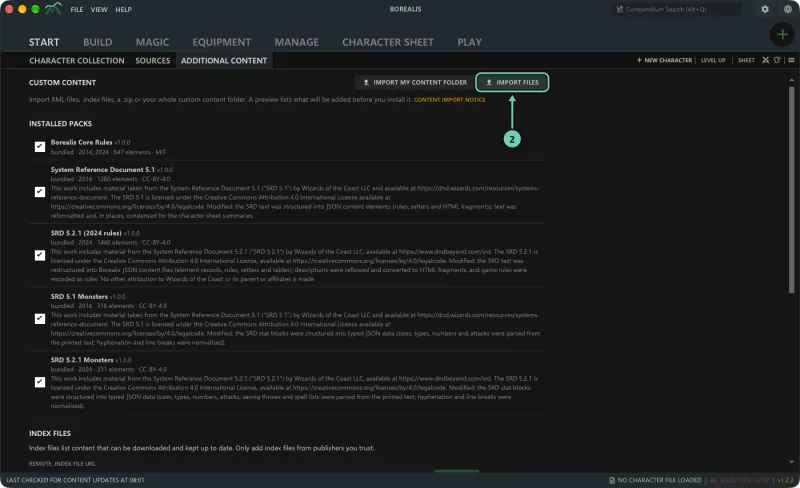
-
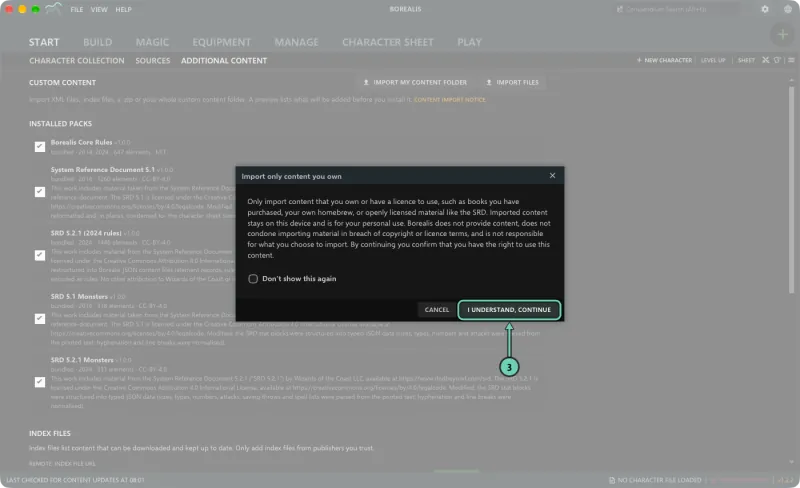
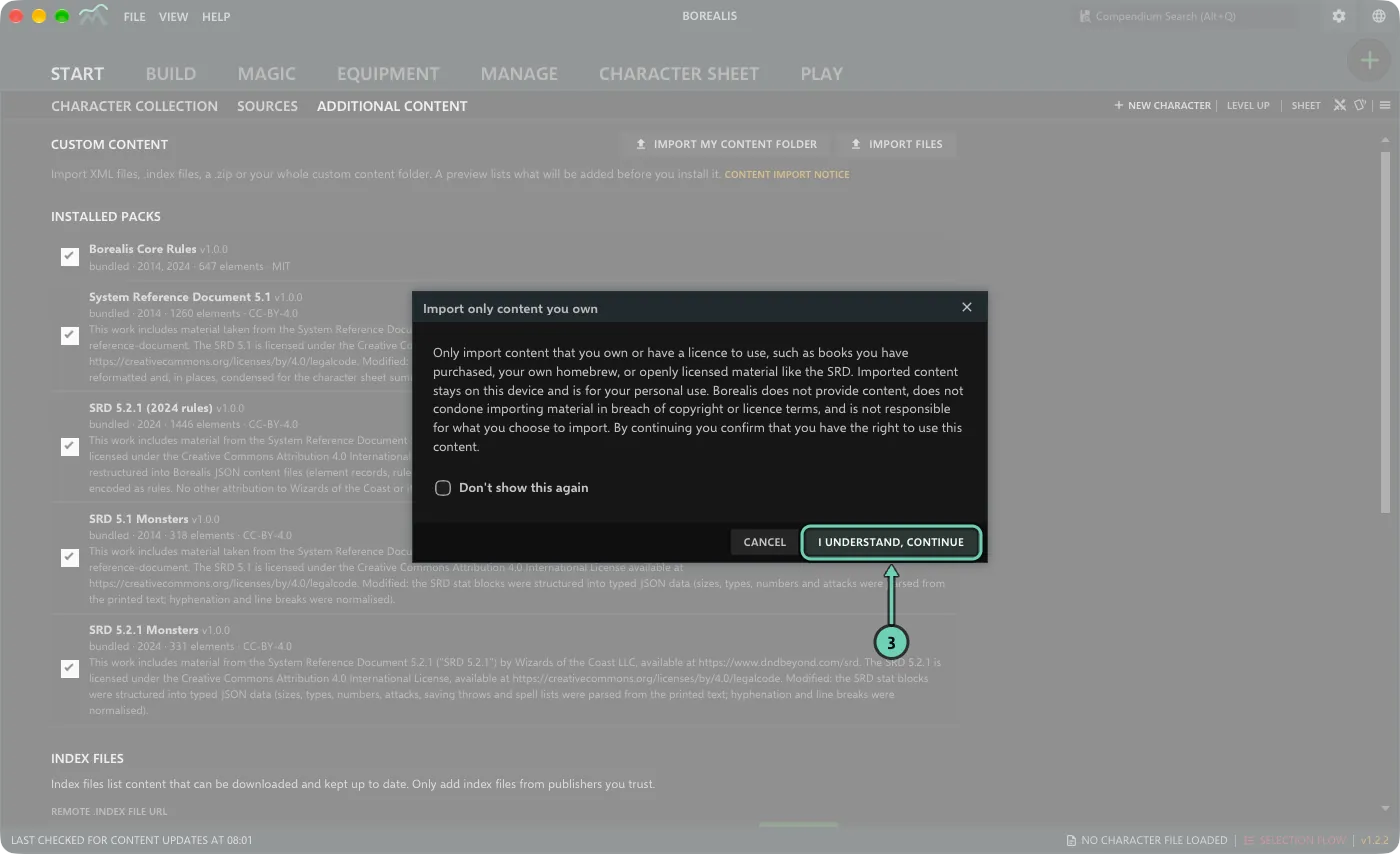
Borealis asks you to confirm that you own the content. Click I understand, continue. Tick Don't show this again if you don't want the reminder each time.
-
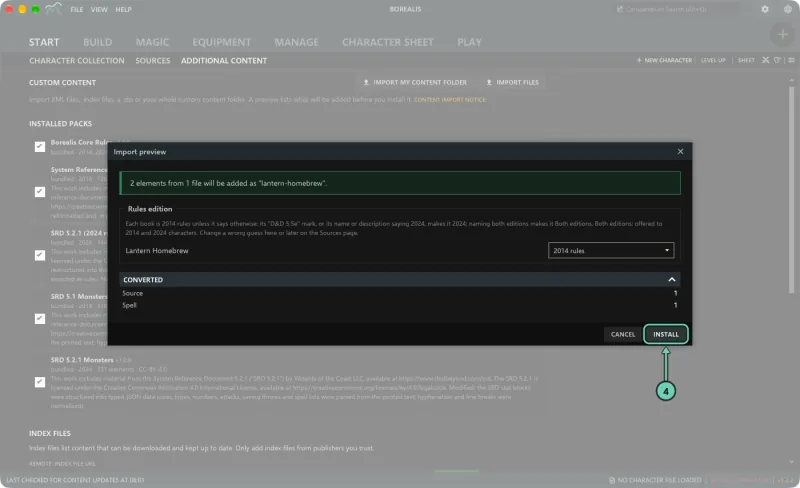
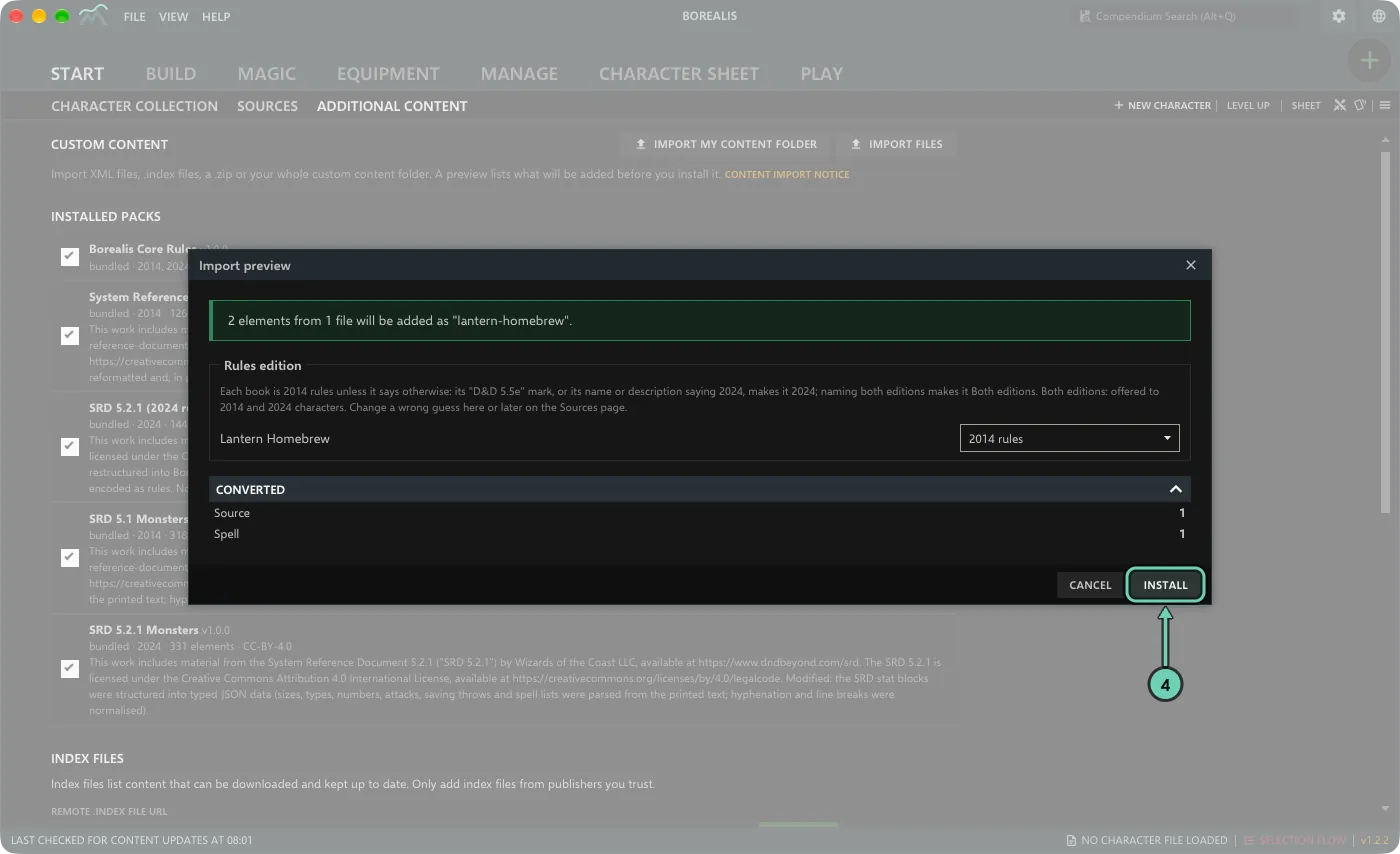
Check the Import preview. It says how many elements from how many files will be added and lists any errors, warnings and notes. Click Install.
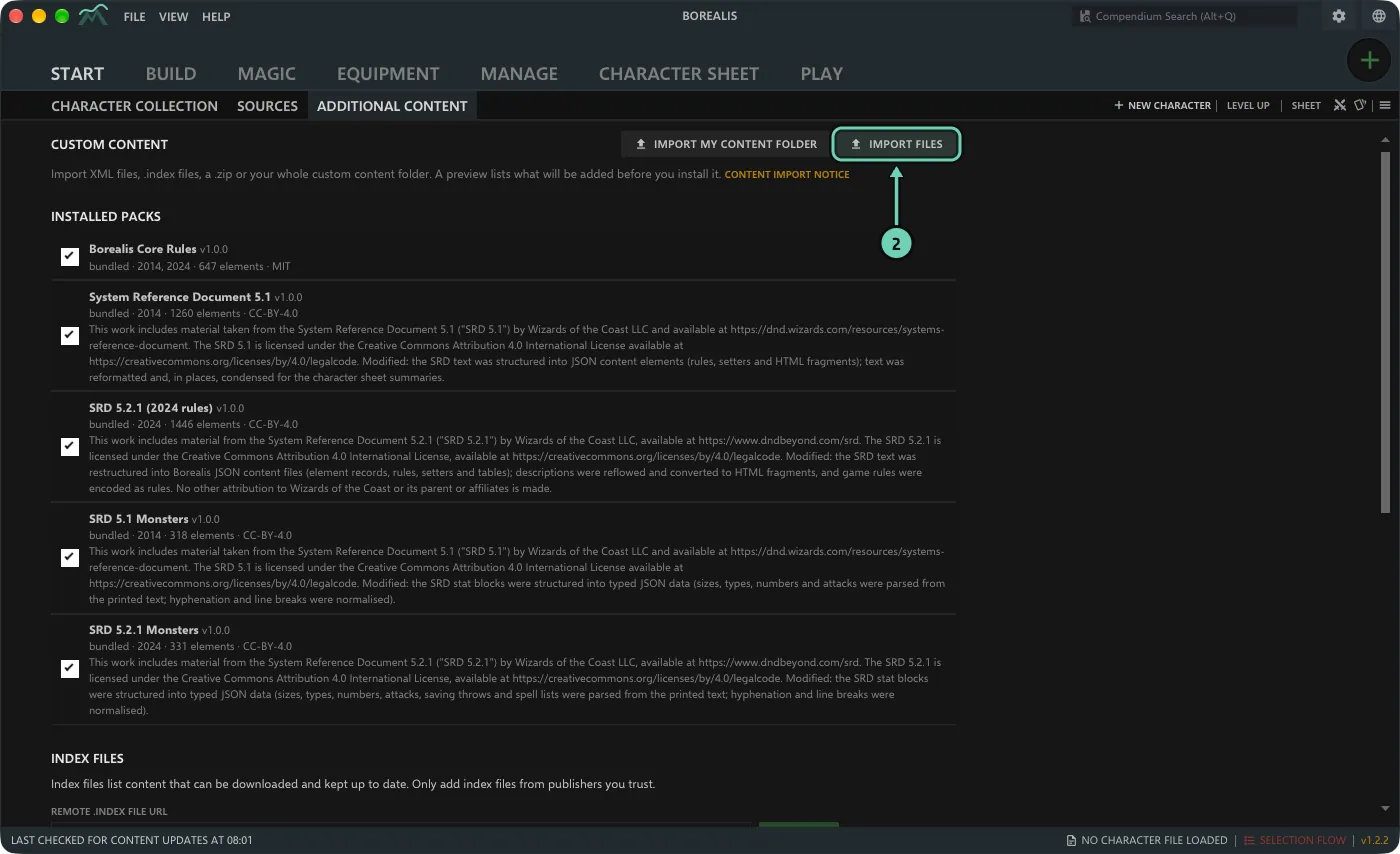
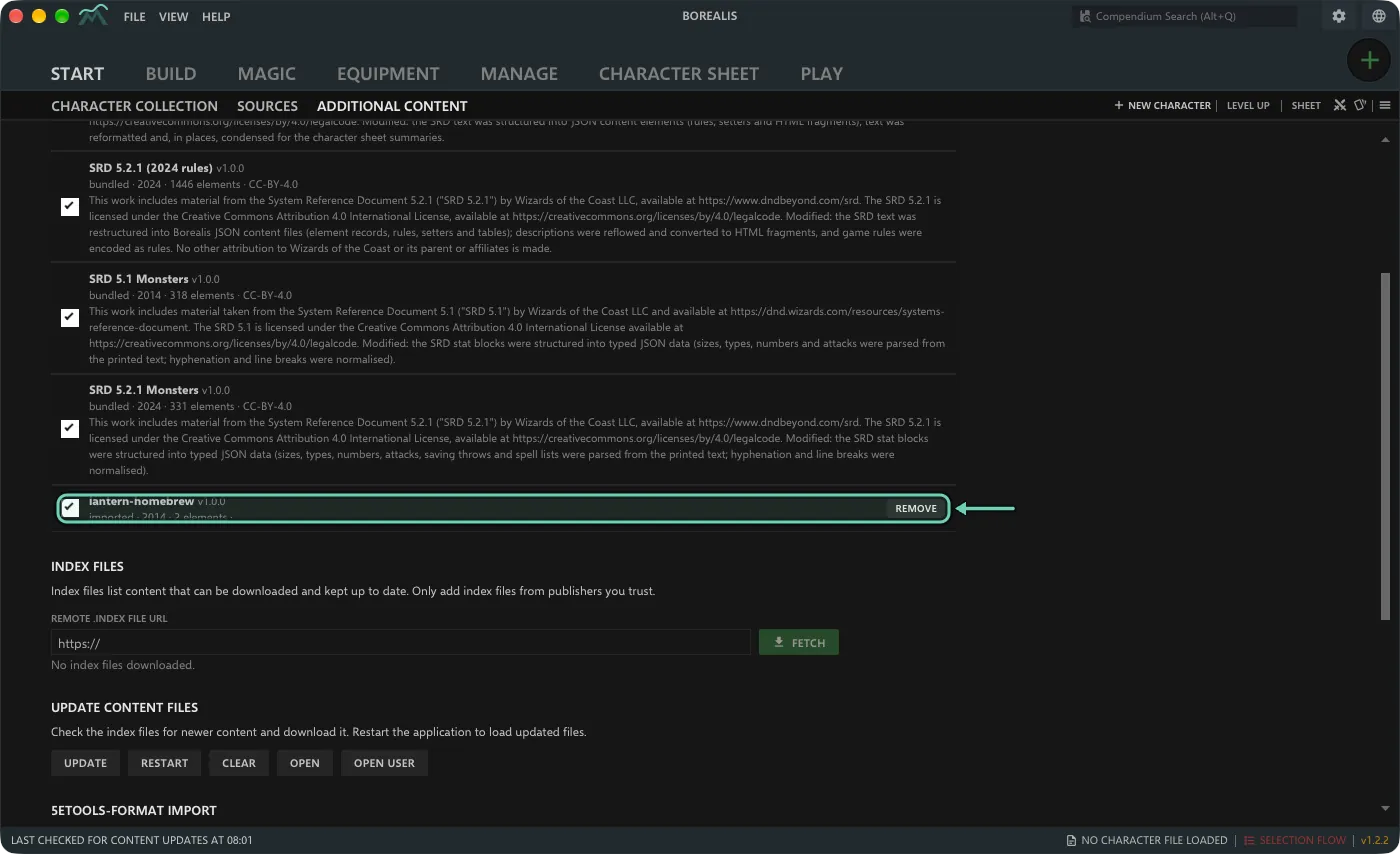
The content is now a pack under Installed packs, and its races, classes, spells and other elements are in the builder and the compendium.
Files you choose together are converted as one set, so elements that refer to each other across files are linked up. If the preview lists Unresolved references, the files depend on content you have not imported yet: import that too (for example the rest of your content folder), or install anyway and add it later.
Add an index file that downloads content
An index file (.index, in Aurora's format) lists content files on the internet. Borealis downloads them, including the files of nested index files, converts them on your device and installs them as one pack. Only add index files from publishers you trust.
-
On Additional Content, under Index files, paste the address of the
.indexfile into Remote .index file URL and click Fetch. The address starts withhttps://, for examplehttps://example.com/my-content.index. A link to the file's page on GitHub (…/blob/…) works too; Borealis turns it into the address of the raw file. Share links from cloud drives do not work yet: download the files and use Import files instead.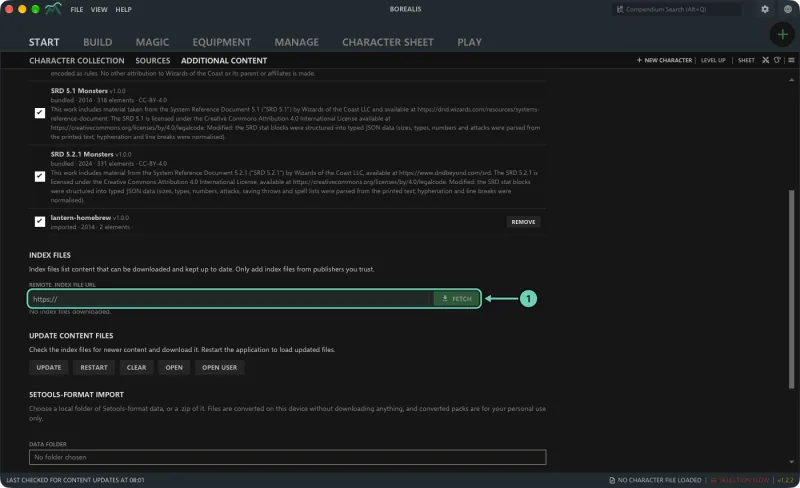
- The first time you use an address, Borealis shows Add content source with the site it will download from. Click Add source. The download starts straight away.
- To get newer files later, click Update under Update content files. On a computer, Borealis also checks at startup (Application Settings > Data files > Automatic Updates), and Restart loads what changed.
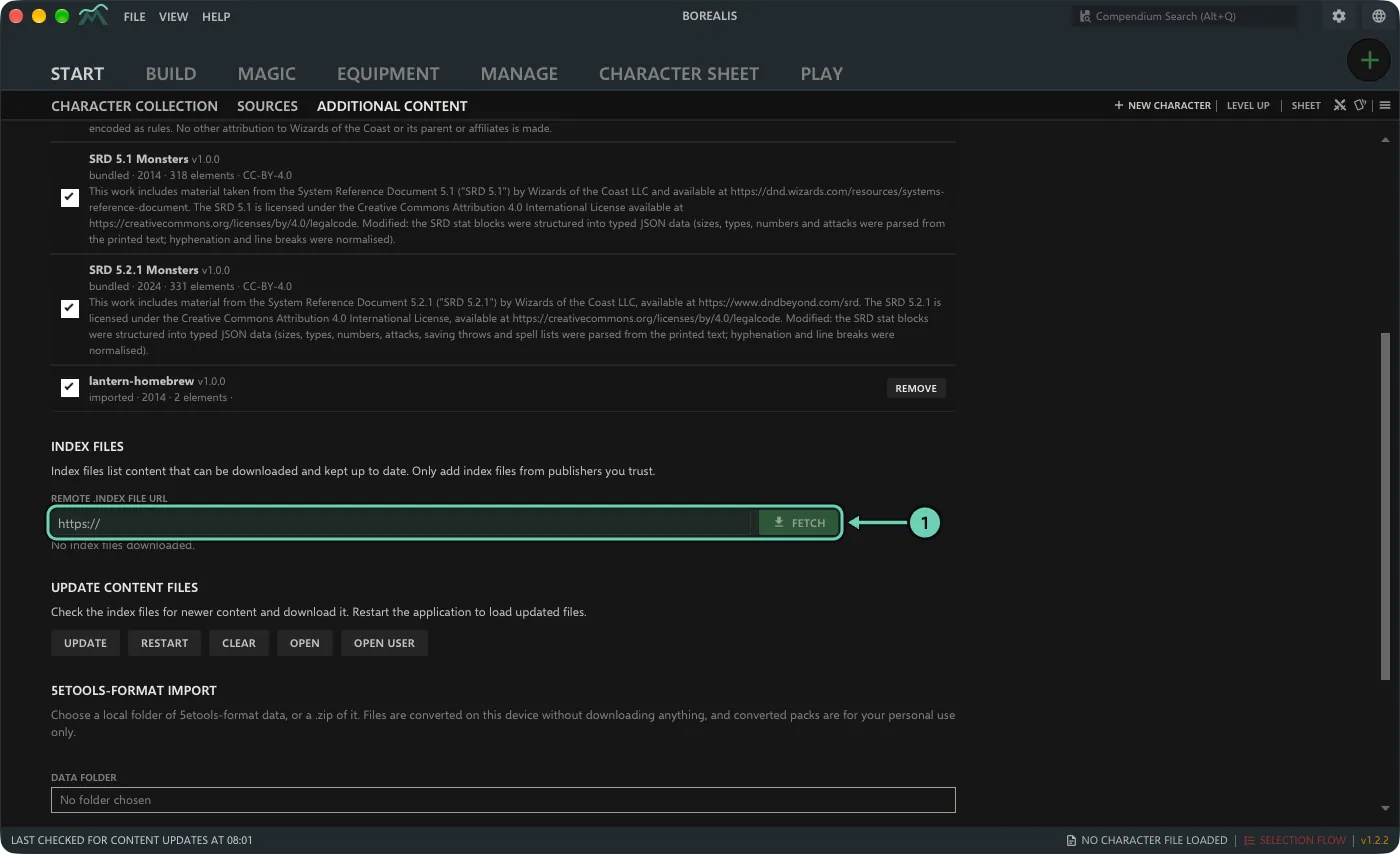
Index files work on phones too, over the internet. Remove next to an index forgets its address; the packs it installed stay until you remove them.
Import your .dnd5e characters
-
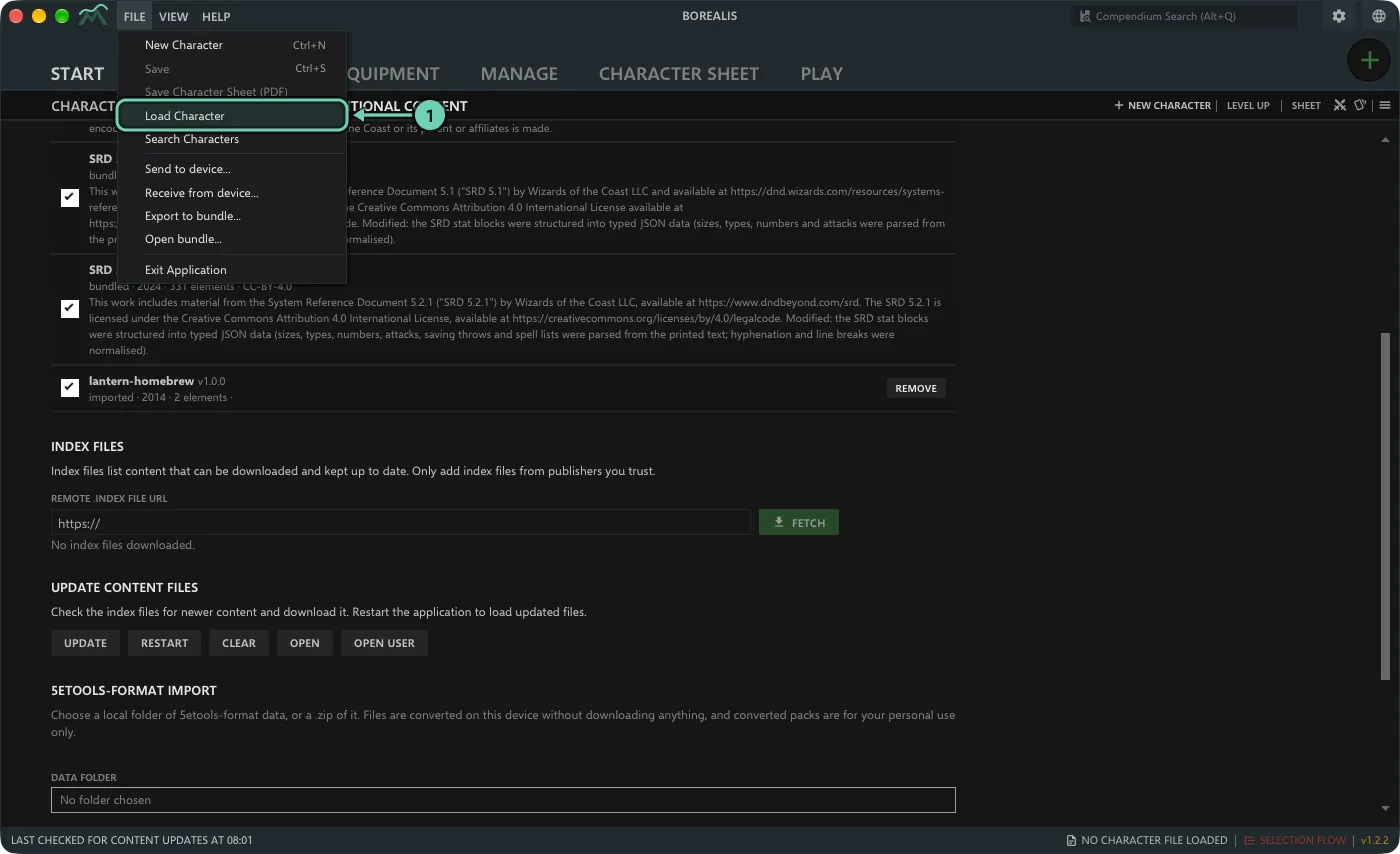
On a computer, open the File menu and choose Load Character. On a phone, tap Import characters on the Start tab.
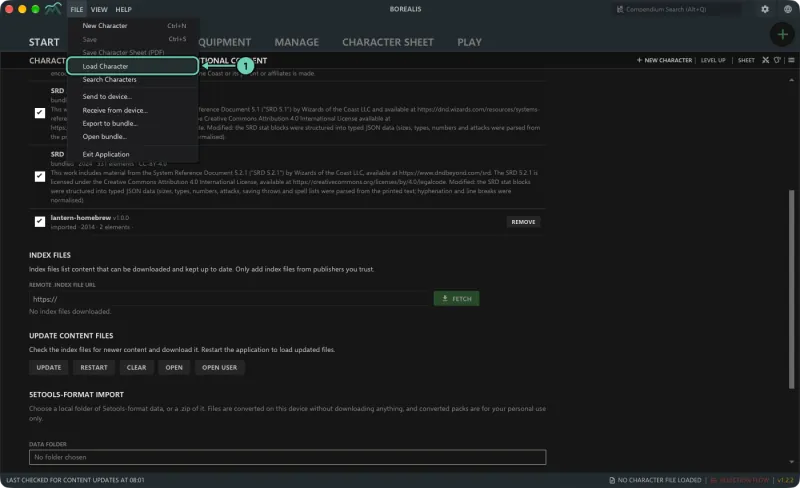
- Choose one or more
.dnd5efiles. You can also drag them onto the window, or open them with Borealis from your file manager. -
Read the Import report and click Done.
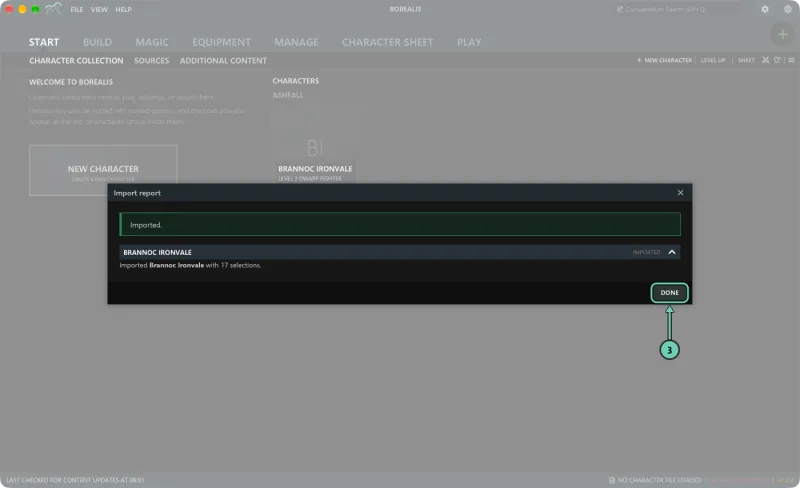
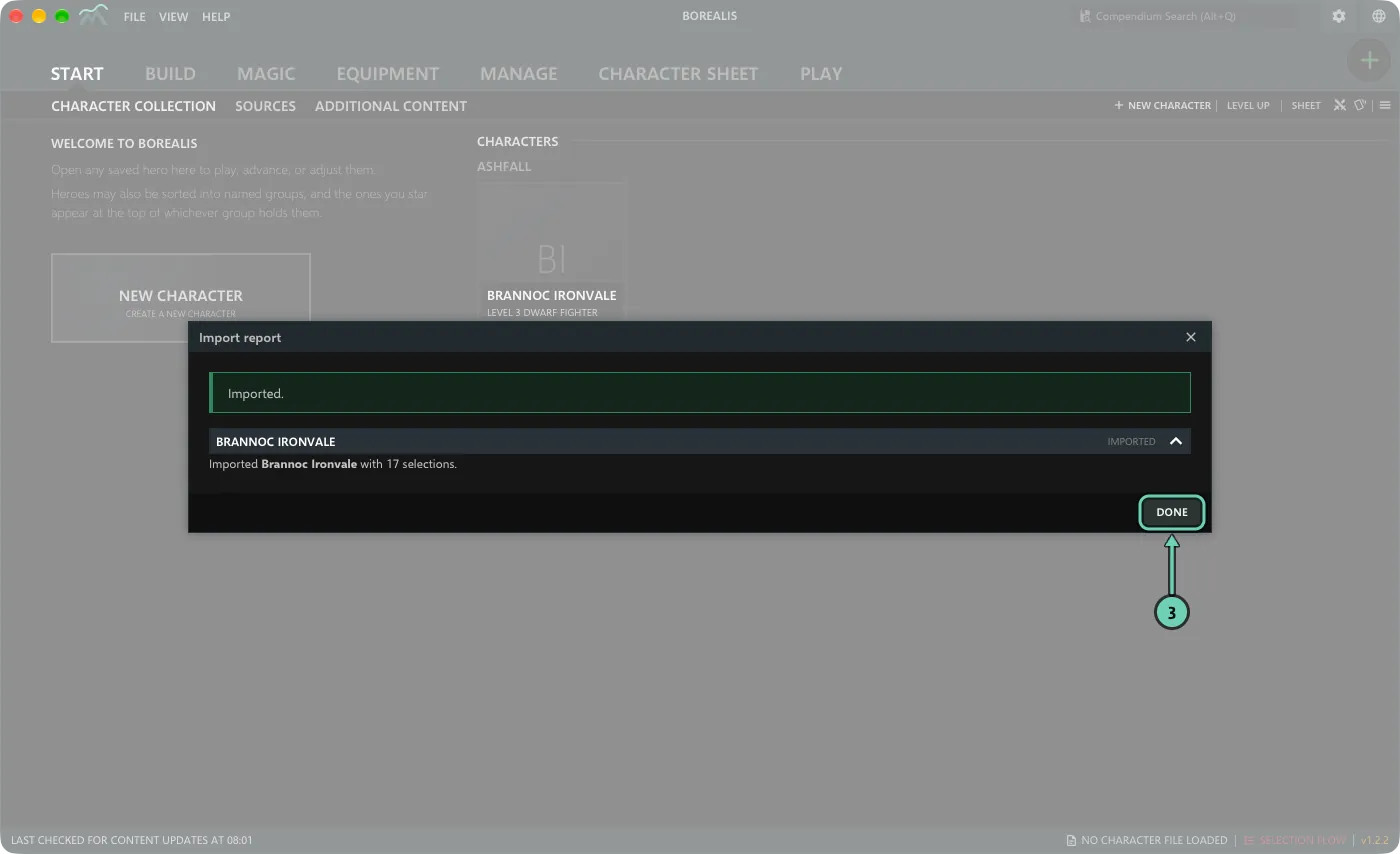
A character that uses content you have not installed still imports. The report lists what is missing under Missing content, grouped by source. Import that content as shown above, then click Re-check missing content on the Start tab: the character picks it up without importing it again.
Turn off, update or remove a pack
- Untick a pack under Installed packs to hide its content without removing it.
- To update content you imported yourself, import the new files under the same file or folder name. The preview warns that the installed pack will be replaced.
- Remove deletes a pack after asking. Characters that use its content may lose those selections. The bundled SRD packs cannot be removed, only turned off.
When something does not import
- Open the Errors, Warnings and Notes in the preview (or the import report afterwards). Each one names the file, the element and the line.
- PDFs, photos and plain text cannot be imported this way. On a computer, the optional AI assistant can turn them into a pack you review first (turn it on in Borealis Settings).
- Still stuck? Post in the Borealis Discord (#imports) or open an issue on GitHub. Say which file and element, what you expected and what Borealis did, and your Borealis version (bottom right of the window). Please don't attach files from books you bought; your own homebrew is fine.